
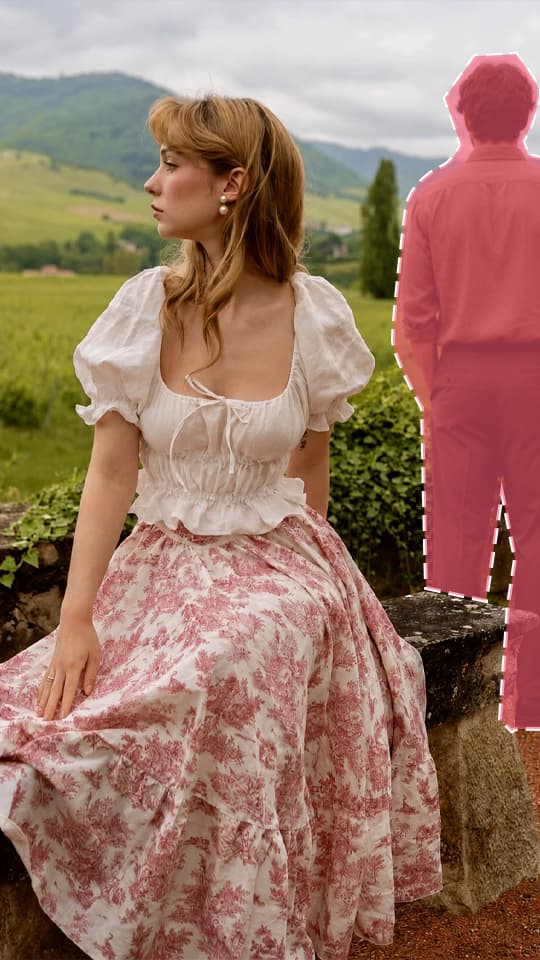
What you get
Brush to select
Paint over anything you want gone; the brush color adjusts so you always see it.
Natural fill
The background is rebuilt with matching light, texture and perspective.
Guide the result
Optionally describe what should fill the area, like “empty sand and calm water”.
How to use Remove object
- 1
Add a photo
Drop, paste or pick a photo in Lumora Studio.
- 2
Adjust if you like
The defaults work well. Change options or add a short description.
- 3
Get the result
Compare before and after, then download or keep it in your library.
Remove object FAQ
Can I undo a brush stroke?
Yes. Use Undo or Ctrl/⌘+Z as many times as you need before you run it.
What works best?
Paint slightly beyond the edges of the object and include its shadow.
More tools

 EnhanceSharpen & upscaleFrom 6 creditsLearn more
 Add objectPlace an object into the photo or merge multiple images into oneFrom 8 creditsLearn more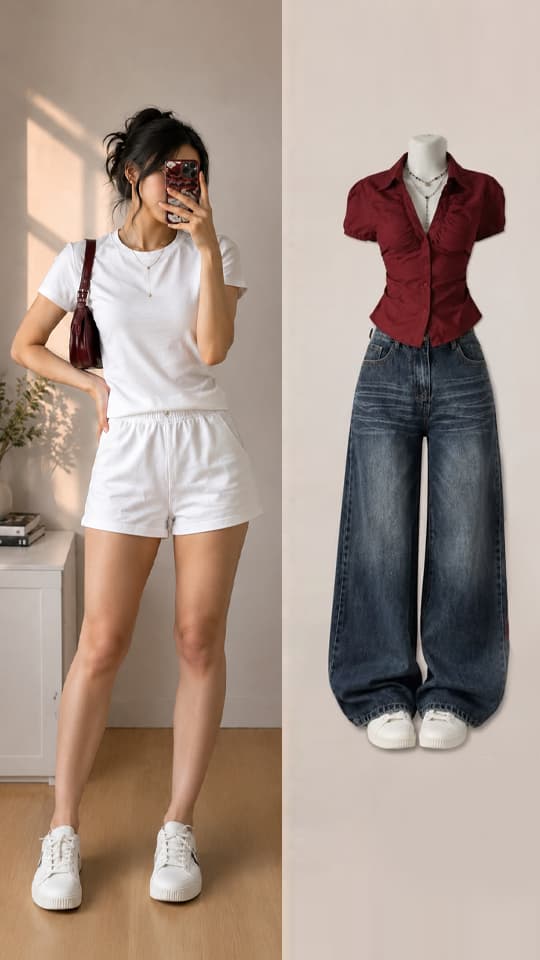
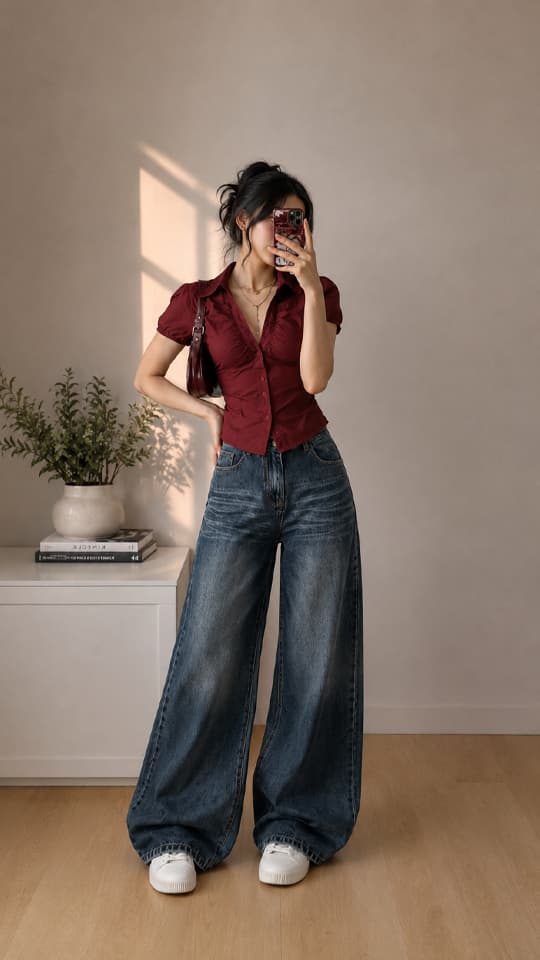 Virtual try-onTry clothes on a photoFrom 8 creditsLearn more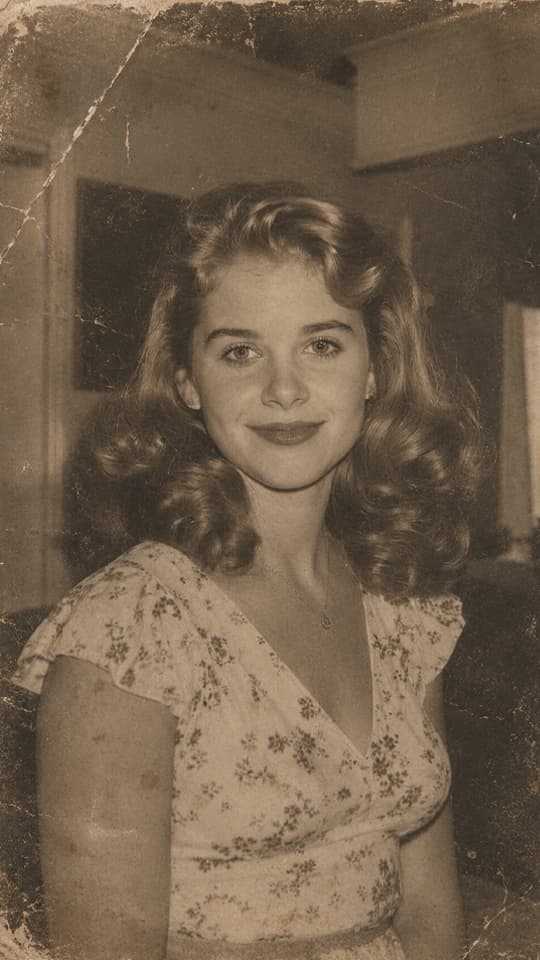
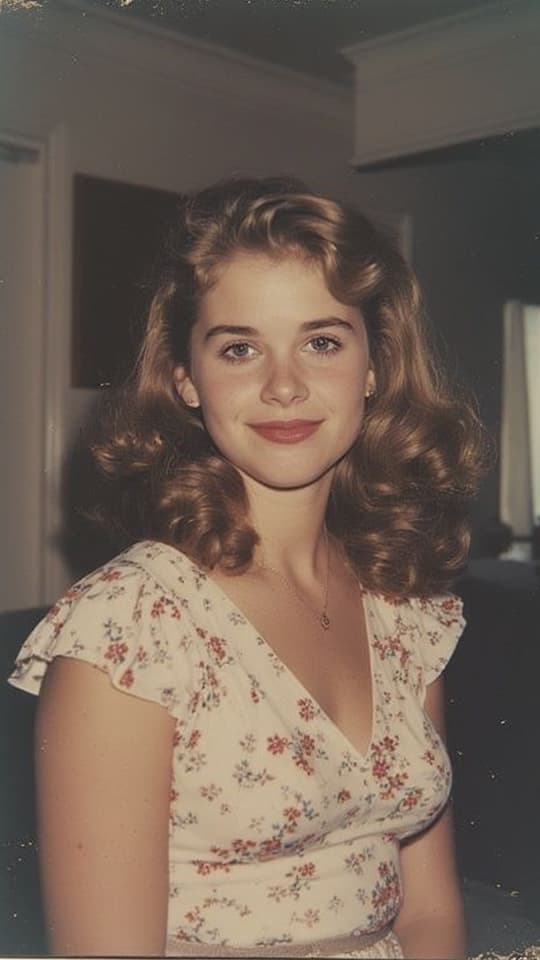 Restore imageRepair and restore damaged or old imagesFrom 6 creditsLearn more
 Colorize imageChange colors images or add color to black and white photosFrom 6 creditsLearn more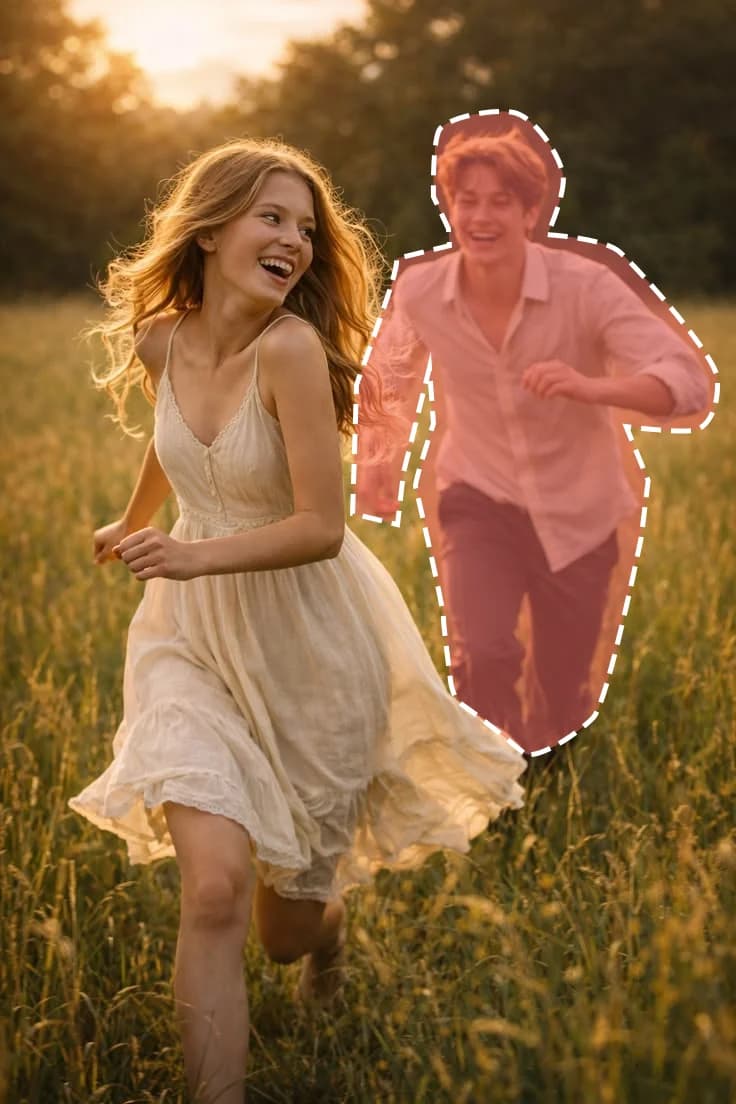
 Replace objectSwap a person, an animal or an object in the photo for another oneFrom 6 creditsLearn more
 Image to videoTurn an image into a short videoFrom 30 creditsLearn more
Your next favorite photo is one click away
Erase unwanted objects