


What you get
Automatic
Lumora reads each photo and balances exposure, color and detail for you.
Up to 4K
Upscale small or old images to crisp 2K or 4K prints.
Batch ready
Drop up to 20 photos and enhance them all in one run.
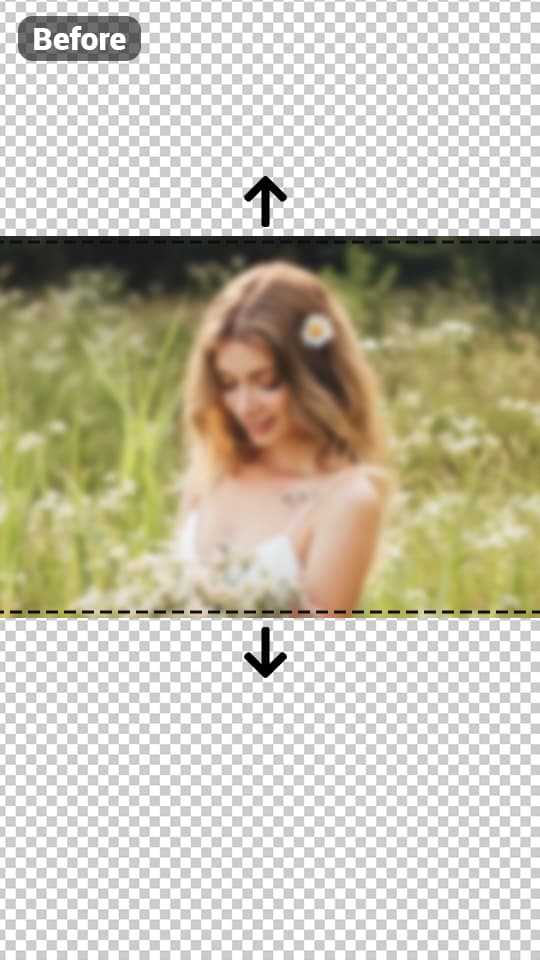
Extend the frame
Pick 1:1, 4:5, 9:16 or 16:9 and Lumora paints the missing edges to match the photo.
How to use Enhance
- 1
Add a photo
Drop, paste or pick a photo in Lumora Studio.
- 2
Adjust if you like
The defaults work well. Change options or add a short description.
- 3
Get the result
Compare before and after, then download or keep it in your library.
Enhance FAQ
Do I need to write a prompt?
No. Enhance is fully automatic — just add your photos and run it.
Will it change faces or details?
Enhance improves light, color and sharpness while keeping people and scenes as they are.
Can it change the shape of my photo?
Yes. Choose a frame like 9:16 or 16:9 — Lumora extends the scene around your photo instead of cropping it.
More tools

 Remove objectErase unwanted objectsFrom 7 creditsLearn more
 Add objectPlace an object into the photo or merge multiple images into oneFrom 8 creditsLearn more
 Virtual try-onTry clothes on a photoFrom 8 creditsLearn more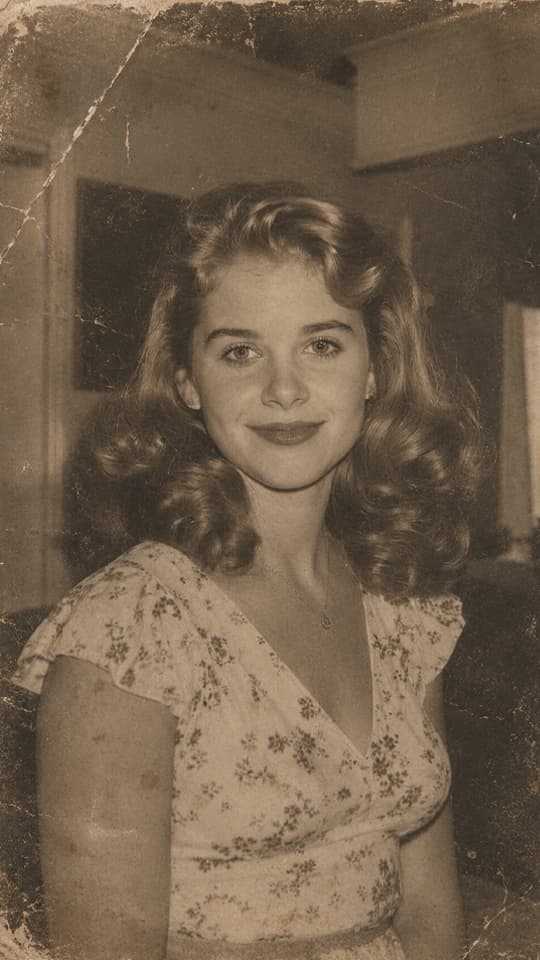
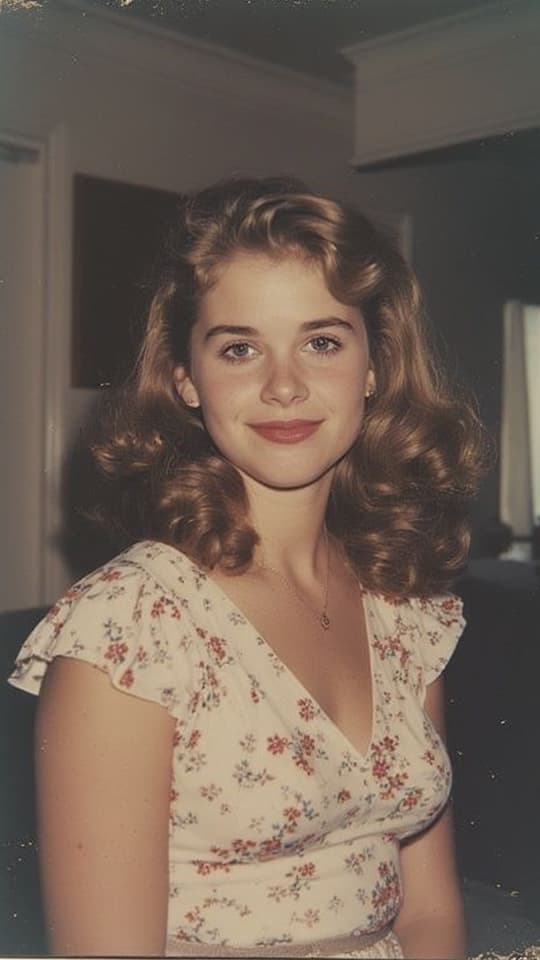 Restore imageRepair and restore damaged or old imagesFrom 6 creditsLearn more
 Colorize imageChange colors images or add color to black and white photosFrom 6 creditsLearn more
 Replace objectSwap a person, an animal or an object in the photo for another oneFrom 6 creditsLearn more
 Image to videoTurn an image into a short videoFrom 30 creditsLearn more
Your next favorite photo is one click away
Sharpen & upscale